Ever lost control of your lights because your smart switch decided to take a nap? Yeah, we’ve all been there—standing in the dark, smartphone in hand, frantically tapping buttons like it’s some kind of tech exorcism. And just when you think you’ve got it figured out, boom: connectivity issues strike again.
In this post, we’ll guide you through everything from diagnosing connection woes to reviving your “smart” devices that suddenly act dumb. You’ll learn:
- Why smart switches fail and how to fix them fast.
- Step-by-step troubleshooting tips tailored to common problems.
- Bonus hacks (and one terrible tip) so you’re never left in the dark again.
Table of Contents
- Key Takeaways
- Why Do Smart Switches Act Up?
- Step-by-Step Troubleshooting
- Top Tips to Keep Your Switches Running Smoothly
- Real-Life Success Stories: From Chaos to Control
- FAQs About Smart Switch Problems
Key Takeaways
- Smart switches often fail due to Wi-Fi interference or firmware bugs.
- A simple reboot can solve most connectivity headaches.
- Regular updates and proper setup reduce long-term frustration.
Why Do Smart Switches Act Up?
If you thought technology was supposed to make life easier, try explaining that to your smart switch acting up at midnight. Let’s break it down.
Confessional Fail: I once installed a smart switch backward—literally wired wrong—and nearly blew a fuse while trying to troubleshoot why my lights were flickering. Lesson learned: always double-check wiring schematics!
Common causes of smart switch glitches include:
- Poor Wi-Fi Signal: Sounds like nails on a chalkboard when Alexa won’t sync with your device.
- Outdated Firmware: Like running Windows 98 in 2024—not cool.
- Incompatible Devices: Mixing brands without checking compatibility? Chef’s kiss for future headaches.
Step-by-Step Troubleshooting
Optimist You: “There has to be an easy fix!”
Grumpy You: “Ugh, fine—but only if coffee’s involved.”
Here’s your go-to checklist for getting things back online:
Step 1: Reboot Everything
Like restarting your router after binge-watching Netflix, sometimes a reboot solves 90% of issues.
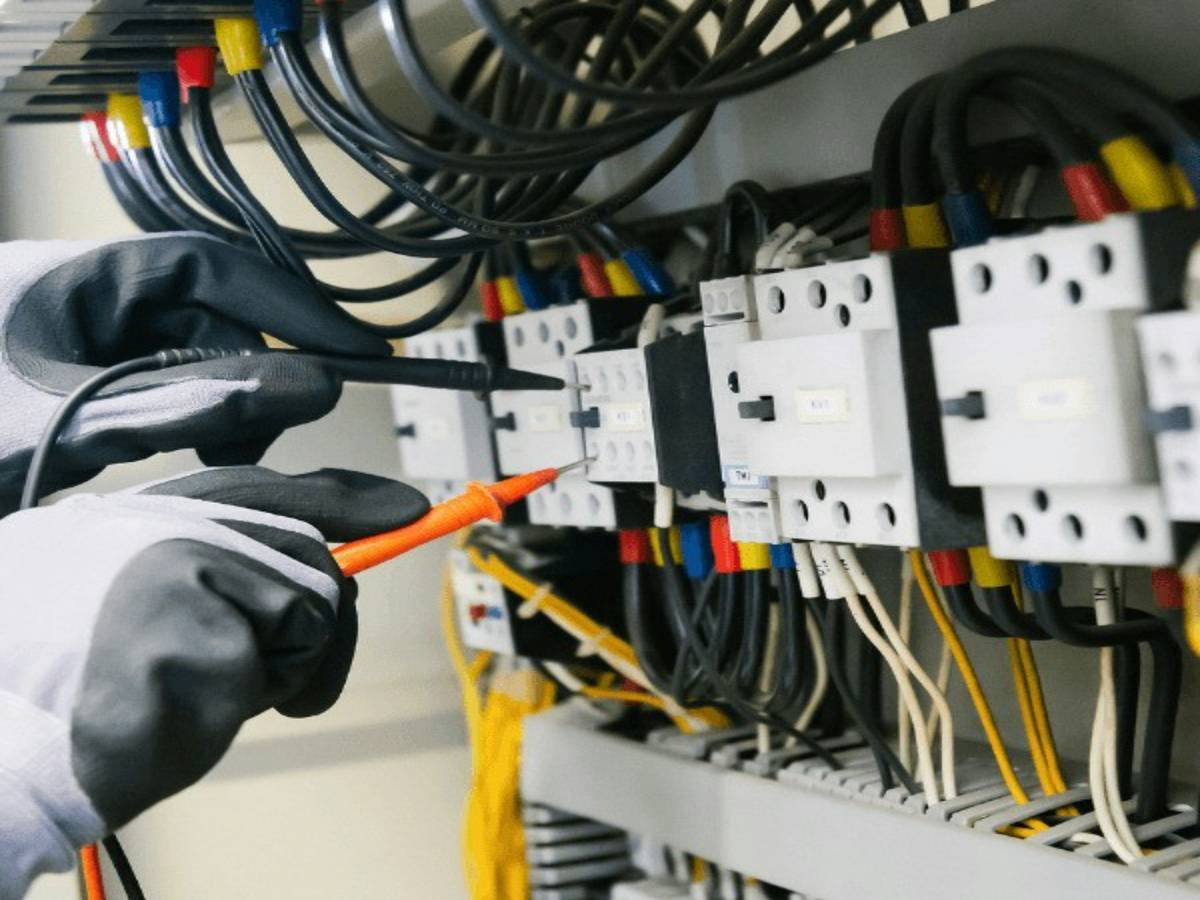
Step 2: Check Wiring Connections
If Step 1 doesn’t work, grab your multimeter and ensure the wiring matches the diagram provided by the manufacturer.
Step 3: Update Firmware
This feels like updating Java plugins but trust me—it matters. Outdated software is public enemy #1 for smart tech.
Step 4: Test Connectivity
Move closer to your router or use a Wi-Fi extender to rule out signal interference. Works like magic.
Top Tips to Keep Your Switches Running Smoothly
These gems will save you hours of frustration:
- Schedule Regular Updates: Treat firmware updates like watering houseplants—they need attention.
- Use Dedicated Circuits: Prevent power surges by avoiding overloaded circuits.
- Stick to One Ecosystem: Brands like Philips Hue or Samsung SmartThings play nice together.
- (Terrible Tip!) DIY Repair Kits: Disclaimer: Don’t open up your switch unless you want voided warranties and sparks flying everywhere.
Real-Life Success Stories: From Chaos to Control
Rachel, a busy mom of two, shares her victory over a rogue switch: “My living room lights kept randomly turning off until I realized my microwave was interfering with the Wi-Fi. Moved the router, problem solved!”
Case studies like Rachel’s prove even small changes yield big results.
FAQs About Smart Switch Problems
Why does my smart switch keep disconnecting?
Likely culprit? Wi-Fi interference or poor signal strength. Try relocating your router.
Can I install a smart switch myself?
Yes—if you’re comfortable with basic electrical work. Otherwise, hire a pro.
What happens if my smart switch stops working entirely?
Restart it. If no luck, reset to factory settings using the manual.
Conclusion
We covered a lot today: common reasons behind malfunctioning smart switches, actionable troubleshooting steps, insider tips, and inspiring stories proving that persistence pays off.
“Troubleshooting Tips”—your lifeline during those late-night light crises—are now part of your toolkit. Remember our golden rule: Prevention beats cure every time.
Random Haiku for Tech Geeks:
Switches in distress,
Wi-Fi waves crash and fade,
Reboot brings peace.